Import Sage Intacct Query
Description
Run an ad-hoc query against any Sage Intacct object type and import the results. Unlike the dedicated Sage AP and Sage AP Lines steps, this step lets you target any Intacct object — General Ledger, projects, customers, vendors, custom objects, etc. — and pick the fields and filters you need.
Paging is handled automatically, so the step works for result sets larger than a single Intacct API page.
Examples
No examples yet...
Unique Configuration Items
- Sage Connection — the Sage Intacct REST connection to read from. Sage connections are managed in Tools > Connections.
- Company ID — the Intacct company to query.
- Entity ID(s) (comma-separated) — restrict the query to one or more Intacct entities. Leave blank for every entity.
- Object Name — the Intacct object to query, e.g.
GLACCOUNT,CUSTOMER,PROJECT, or any custom object name. - Fields to import — table of Intacct field names with an Enabled checkbox. Click
Lookup Object Fieldsto populate the list from the Intacct schema, then useSelect AllorSelect Noneto bulk-toggle. - Filters — table of filter rows. Each row is
Field,Filter Type,Value. Filter types includeEqual To,Not Equal To,Less Than,Less Than or Equal To,Greater Than,Greater Than or Equal To,Is Null, andIs Not Null. Filters apply server-side, before paging.
Common Configuration Items
Remove non-ASCII Characters Option
By selecting this option, the import will remove any content that is not ASCII. While PlaidCloud fully supports Unicode (UTF-8), real-world files can contain all sorts of encodings and stray characters that make them challenging to process.
If the content of the file is expected to be ASCII only, checking this box will help ensure the import process runs smoothly.
Target Table
The target selection for imports is limited to tables only since views do not contain underlying data.
Dynamic Option
The Dynamic option allows specification of a table using text, including variables. This is useful when employing variable driven workflows where table and view references are relative to the variables specified.
An example that uses the current_month variable to dynamically point to target table:
legal_entity/inputs/{current_month}/ledger_values
Static Option
When a specific table is desired as the target for the import, leave the Dynamic box unchecked and select the target Table.
If the target Table does not exist, select the Create new table button to create the table in the desired location.
Table Explorer is always avaible with any table selection. Click on the Table Explorer button to the right of the table selection and a Table Explorer window will open.
Data Mapper Configuration
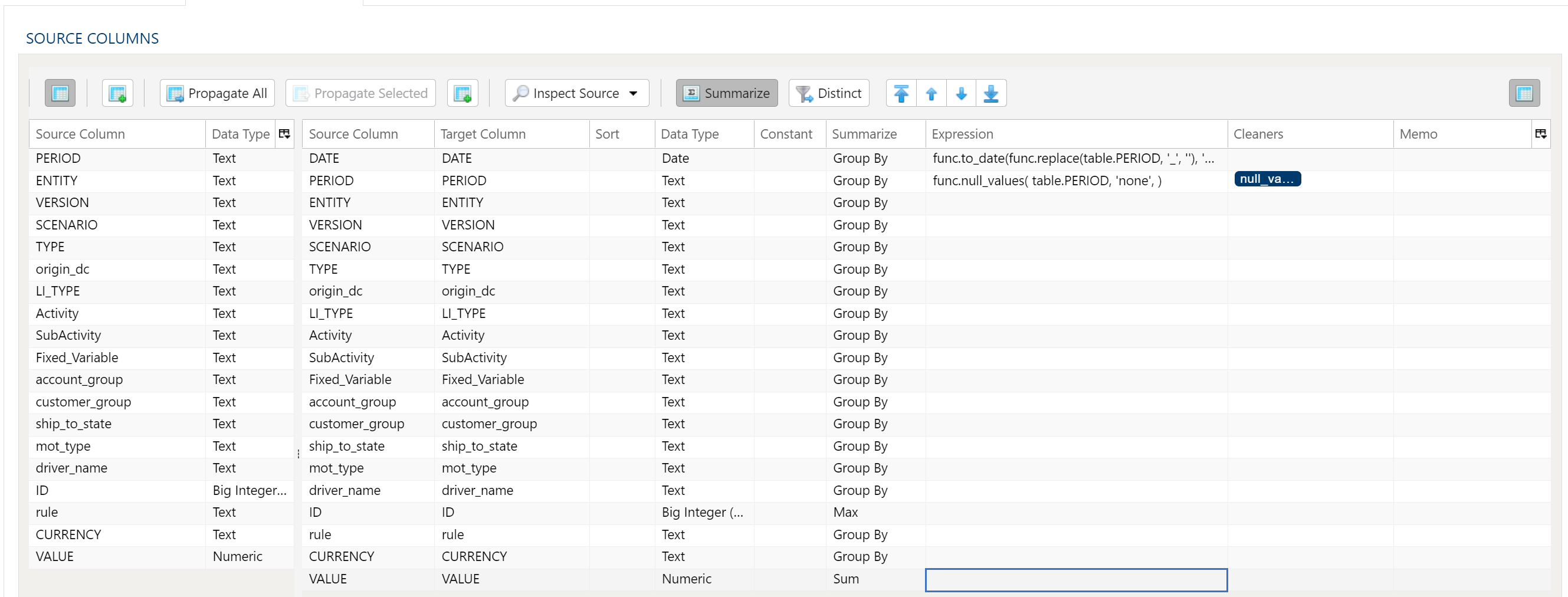
The Data Mapper is used to map columns from the source data to the target data table.
Inspection and Populating the Mapper
Using the Inspect Source menu button provides additional ways to map columns from source to target:
- Populate Both Mapping Tables: Propagates all values from the source data table into the target data table. This is done by default.
- Populate Source Mapping Table Only: Maps all values in the source data table only. This is helpful when modifying an existing workflow when source column structure has changed.
- Populate Target Mapping Table Only: Propagates all values into the target data table only.
If the source and target column options aren’t enough, other columns can be added into the target data table in several different ways:
- Propagate All will insert all source columns into the target data table, whether they already existed or not.
- Propagate Selected will insert selected source column(s) only.
- Right click on target side and select Insert Row to insert a row immediately above the currently selected row.
- Right click on target side and select Append Row to insert a row at the bottom (far right) of the target data table.
Deleting Columns
To delete columns from the target data table, select the desired column(s), then right click and select Delete.
Changing Column Order
To rearrange columns in the target data table, select the desired column(s). You can use either:
- Bulk Move Arrows: Select the desired move option from the arrows in the upper right
- Context Menu: Right clikc and select Move to Top, Move Up, Move Down, or Move to Bottom.
Reduce Result to Distinct Records Only
To return only distinct options, select the Distinct menu option. This will toggle a set of checkboxes for each column in the source. Simply check any box next to the corresponding column to return only distinct results.
Depending on the situation, you may want to consider use of Summarization instead.
The distinct process retains the first unique record found and discards the rest. You may want to apply a sort on the data if it is important for consistency between runs.
Aggregation and Grouping
To aggregate results, select the Summarize menu option. This will toggle a set of select boxes for each column in the target data table. Choose an appropriate summarization method for each column.
- Group By
- Sum
- Min
- Max
- First
- Last
- Count
- Count (including nulls)
- Mean
- Standard Deviation
- Sample Standard Deviation
- Population Standard Deviation
- Variance
- Sample Variance
- Population Variance
- Advanced Non-Group_By
For advanced data mapper usage such as expressions, cleaning, and constants, please see the Advanced Data Mapper Usage
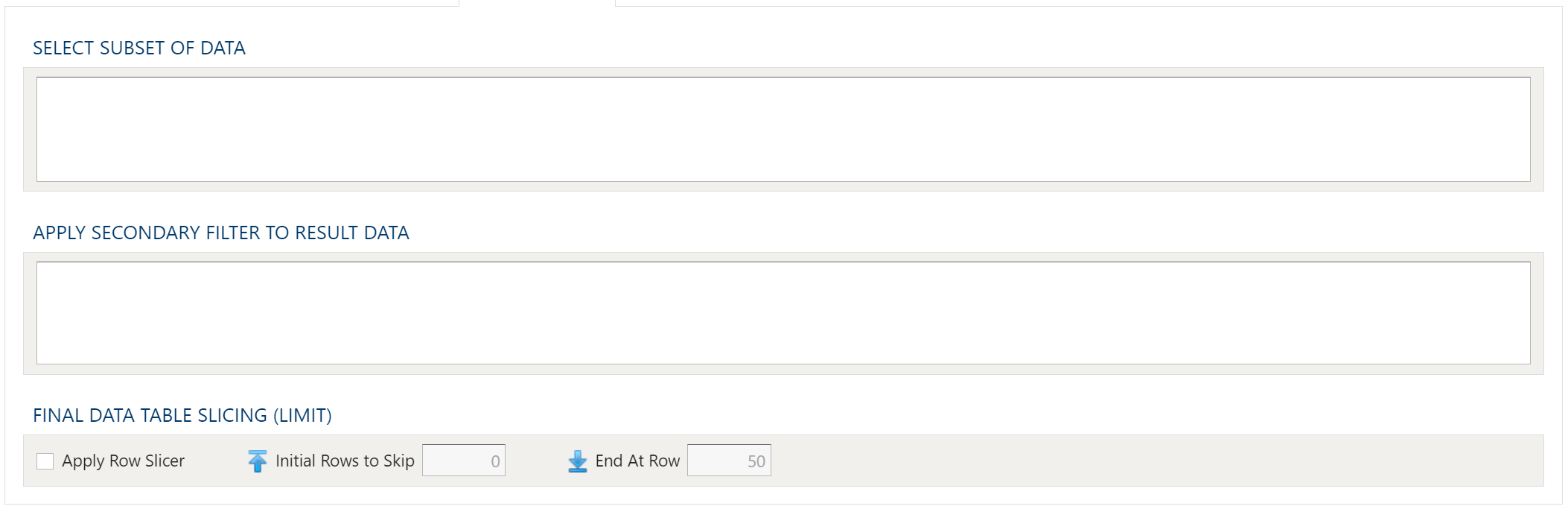
To allow for maximum flexibility, data filters are available on the source data and the target data. For larger data sets, it can be especially beneficial to filter out rows on the source so the remaining operations are performed on a smaller data set.
Select Subset Of Data
This filter type provides a way to filter the inbound source data based on the specified conditions.
Apply Secondary Filter To Result Data
This filter type provides a way to apply a filter to the post-transformed result data based on the specified conditions. The ability to apply a filter on the post-transformed result allows for exclusions based on results of complex calcuations, summarizaitons, or window functions.
Final Data Table Slicing (Limit)
The row slicing capability provides the ability to limit the rows in the result set based on a range and starting point.
Filter Syntax
The filter syntax utilizes Python SQLAlchemy which is the same syntax as other expressions.
View examples and expression functions in the Expressions area.